
First open a new page
Go to File - New - HTML file
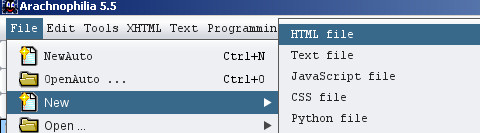
Without doing any programming you now have the basics of a page with your cursor in the correct place to begin your page content.
I have added remarks in green.
|
<html xmins=http://www.w3.org/1999/xhtml"> (OPEN HTML DOCUMENT) <head > (OPEN HEAD SECTION) <title > Enter a title here (Name of the page) </title > <meta name="GENERATOR"content="Arachnophilia 5.5">(data for search engines) <meta name="FORMATTER"content="Arachnophilia 5.5"> </head > (CLOSE HEAD SECTION) <body bgcolor="#ffffff"text="#000000"link="#0000ff"vlink="#800080"alink="#ff0000"> | (CURSOR POSITION) </body > </html > (CLOSE HTML DOCUMENT) |
HTML uses tags to control everything.
Most tags come in pairs with an opening tag <head> then some content and a closing tag </head>
The closing tag name is identical to the opening tag but preceeded by a forward slash.
You can include information in the opening tag. In this case the body tag assigns colors for text links and background in computer jargon called hexidecimal.
|
You don't need to know this.
but in case you are interested computers do not count in tens so they had to add some letters to make it up to 16. Hexidecimal numbers go like this. 0,1,2,3,4,5,6,7,8,9,a,b,c,d,e,f. The long and the short of it is that in these 6 digit numbers the lowest 000000 is black and the highest ffffff is white and all other colors and shades come somewhere in between. This is how they get 16.7 million colors from 6 digits. I told you you didn't need to know. |
Now save the page by clicking the 'Save' button.
Because this is the first page on the site it must be called 'index.html'
Future pages can be called whatever you like but be aware there can be no spaces or punctuation in any file names.
'mypage.html' will work 'my page.html' or 'my,page.html' will not.
Once you have named the file clicking this button will save it automatically.
As with any program you should save often as you work in case of computer crashes, blackouts etc.
Now that we have a page let us give it a title in the head section.
This is what shows when you save a page to 'Favorites'
I will call it 'My Page'
<title>My Page</title>
Next a simple heading.
Click in the body section to get your cursor in the correct place.
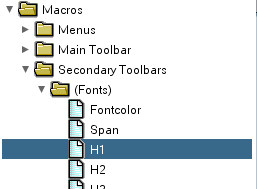
Arachnophilia has a wealth of toolbars in Macros down the left side and you can add your own favorites later on.
Open the Fonts in the Secondary Toolbars and click on H1 ( Heading 1 ) and type in 'My Page'
<html xmins=http://www.w3.org/1999/xhtml">
<head >
<title >
My Page
</title >
<meta name="GENERATOR"content="Arachnophilia 5.5">
<meta name="FORMATTER"content="Arachnophilia 5.5">
</head >
<body bgcolor="#ffffff"text="#000000"link="#0000ff"vlink="#800080"alink="#ff0000">
<H1 >My Page </H1 >
</body >
</html >
We need to have the heading centered on the page so highlight it and click the center icon on the top toolbar.

and you will get this
<html xmins=http://www.w3.org/1999/xhtml">
<head >
<title >
HTML Tutorial
</title >
<meta name="GENERATOR"content="Arachnophilia 5.5">
<meta name="FORMATTER"content="Arachnophilia 5.5">
</head >
<body bgcolor="#ffffff"text="#000000"link="#0000ff"vlink="#800080"alink="#ff0000">
<div align="center"><H1 >My Page </H1 ></div >
</body >
</html >
The last thing to do on this tutorial is a preview.
Since this is the first time you should decide which browser you want to use and get it set up.
Click 'XHTML' - 'Configure Browsers'.
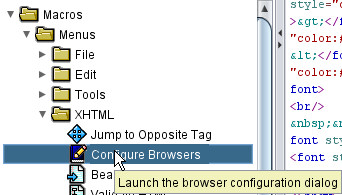
Arachnophilia will find all your browsers so that all you need to do is choose the one you want. I normally use Firefox so that is the one I show here. MAKE SURE YOU CLICK ON ONE WITH .exe FOLLOWING IT TO GET THE ACTUAL PROGRAM.
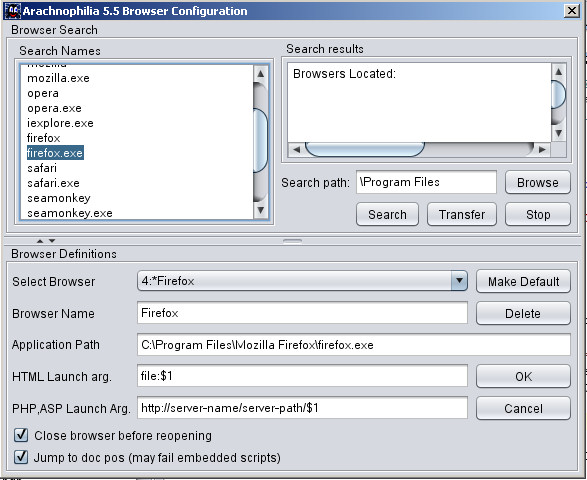
Once that is done just click on the browser launch icon to see your page.
 (on the top main toolbar)
After this you only need to press the browser launch icon unless you want to change browsers.
I know it is not very impressive yet but you have just created your first web page.