 Adding a graphic
<body bgcolor="#ffffff"text="#000000"link="#0000ff"vlink="#800080"alink="#ff0000"> <div align="center"><H1 >My Page</H1 > | </div > </body > Let us change the look of the code so that each element is easier for you to understand. Putting line breaks in the code has no effect on what is displayed on the page. <body bgcolor="#ffffff"text="#000000"link="#0000ff"vlink="#800080"alink="#ff0000"> <div align="center"> Open div tag to center work <H1 > Open heading 1 tag My Page </H1 > Close heading 1 tag | << Position your cursor here ready to insert a graphic while still centered </div > Close div/center tag </body > Notice where I have placed the cursor right before the closing <div> tag which is used to center the content. On the Macros at the left choose 'Secondary Toolbars' - 'Graphics/Misc' - 'NewImg' 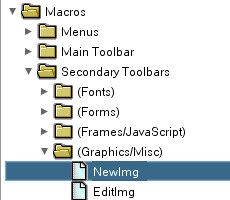 From now on when we need to use a macro I will just list it in green as above. Browse to the graphic you want. In this case you should have a graphic called 'myhome.jpg' from the zip file you downloaded in the beginning. Open the file. You can now see that without knowing any html you have added the graphic tag complete with the correct sizes. The cursor will be in the right place to name the picture if you like in the 'alt' variable. This is what shows before a graphic loads and when you mouse over the graphic. If you click the browser launch icon you will see that the graphic is now on the page. This is how your page code should now look. <html xmins=http://www.w3.org/1999/xhtml"> <head > <title > My Page </title > <meta name="GENERATOR"content="Arachnophilia 5.5"> <meta name="FORMATTER"content="Arachnophilia 5.5"> </head > <body bgcolor="#ffffff" text="#000000" link="#0000ff" vlink="#800080" alink="#ff0000" > <div align="center"> <H1 > My Page </H1 > <img src="myhome.jpg" width="300" height="225" title="" alt="My Home" border="0" > </div > </body > The image tag is one of the only tags that does not have a matching closing tag.
The only compulsory variables are img ( the name of the tag ) and src="name of graphic" Having the sizes in there makes downloading the page faster. Some page building softwares allow you to change the size of the image and you could simply type in different sizes here but this is a very bad idea. You should always change image sizes with your graphics software first because the file size will not change so making it smaller is adding unnecessary time to the download and making it larger loses definition. You will see 2 more variables 'border' and 'alt' and 'title'. The alt variable is where you type the name you want to show before the graphic loads and when the mouse is passed over the graphic. The border variable is one I have added to my button because it does no harm and is needed when the graphic is made into a link. The title variable can be ignored for now. Preview the page |
