We are going to link to other pages so we first need to make 2 simple pages.
They will be called chairs.html and cabinet.html and will have the pictures 'chairs.jpg' and 'cabinet.jpg' centered on the page.
I will skim over this quickly as you have already done most of it.
'File' - 'New' - 'HTMLfile'
Page Title 'Chairs'
Save page as chairs.html
Align center and make a heading 'Chairs' and then under that
Secondary Toolbars - Graphics/Misc - NewImg and browse to the graphic chairs.jpg and open.
Save the page.
Make another page 'cabinet.html' using the 'cabinet.jpg' picture and save that page.
Now open page2.html and remove the table code.
Make a new table almost the same as the last one but this time make the width '0' and border '0'
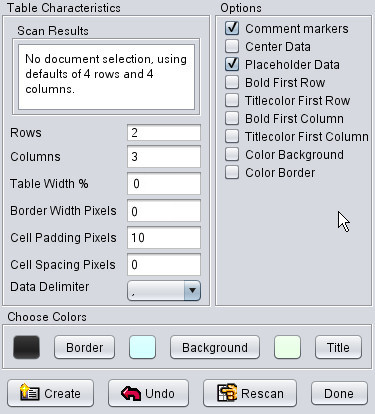
In R1C2 (row 1 column 2) erase the marker.
Secondary Toolbars - Graphics/Misc - NewImg.
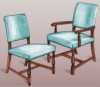
Browse to 'chairs-thumb.jpg'
Highlite the whole image tag.
Secondary Toolbars - Links - NewHTML.
Browse to your page 'chairs.html' and click ok.
<tr >
<!-- Row 1 Column 1 -->
<td >
R1C1
</td >
<!-- Row 1 Column 2 -->
<td >
<a
href="chairs.html"
>
<img
src="chairs-thumb.jpg"
width="100"
height="87"
title=""
alt=""
border="0"
> </a >
</td >
<!-- Row 1 Column 3 -->
<td >
R1C3
</td >
</tr >
Do the same thing in R2C2 using the cabinet-thumb.jpg graphic and the cabinet.html page.
I almost forgot because I have changed my 'NewImg' button code to include 'border="0"'
This is where it is needed in the graphics tag. Without it you will see a colored line around the graphic.
In both cells in column 1 (R1C1, R2C1) Click 'Bold' and then type 'Click on image for a closer look.'
In cell R1C3 Type 'Upholstered Dining Chairs' in bold text.
In cell R2C3 Type 'Bedroom Double Chest' in bold text.
Preview
My Second Page
|
Click on image for closer look.
|
|
Upholstered Dining Chairs
|
|
Click on image for closer look.
|
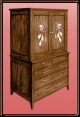 |
Bedroom Double Chest |
|
We are not going for beauty here but the cabinet picture should be centered in it's cell.
You already know 1 way to do that but you can also do it in the cell tag.
Add 'align="center" to that <td> tag.
<td align="center" >
You will notice that since we made the table border '0' the table does not show and because we made the width '0' (resulting in no width variable being included) the table just fits to whatever is in the cells.
This should be your final body code.
<body bgcolor="#ffffff"text="#000000"link="#0000ff"vlink="#800080"alink="#ff0000">
<div align="center" >
<H1 >My Second Page </H1 >
<table border="0"cellspacing="0"cellpadding="10">
<tr >
<!-- Row 1 Column 1 -->
<td >
Click on image for closer look
</td >
<!-- Row 1 Column 2 -->
<td >
<a
href="chairs.html"
>
<img
src="chairs-thumb.jpg"
width="100"
height="87"
title=""
alt=""
border="0"
> </a >
</td >
<!-- Row 1 Column 3 -->
<td >
Upholstered dining chairs
</td >
</tr >
<tr >
<!-- Row 2 Column 1 -->
<td >
Click on image for closer look
</td >
<!-- Row 2 Column 2 -->
<td align="center" >
<a
href="cabinet.html"
>
<img
src="cabinet-thumb.jpg"
width="80"
height="117"
title=""
alt=""
border="0"
> </a >
</td >
<!-- Row 2 Column 3 -->
<td >
Bedroom double chest
</td >
</tr >
</table >
</div >
</body >
The great thing about Arachnophilia is that it only puts in the code that you want.
With other programs you will see all kinds of extra code which makes editing harder.
Those 'easy to use' page builders that some sites offer are not only hard to use if you like things your way but they even use a different method of placement of graphics etc. (absolute positioning) making editing almost impossible.
